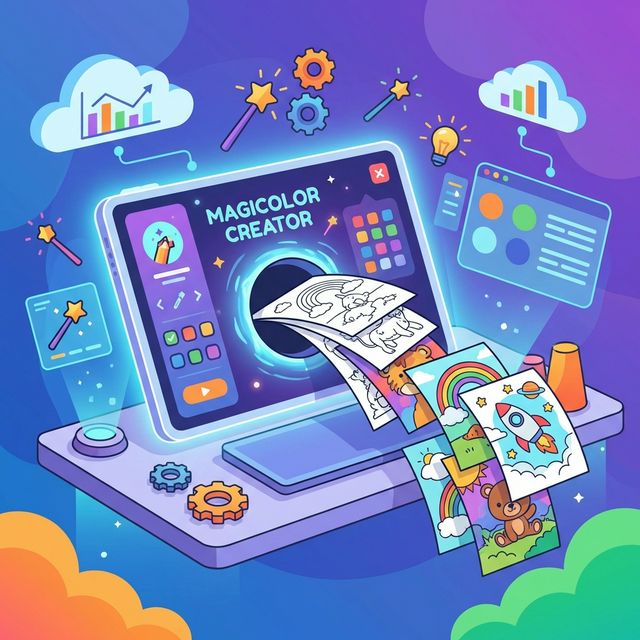
Best Free Online Coloring Page Maker
No Design Skills Needed
You want a coloring page. You don't want to learn graphic design. Here's an honest look at what the free tools can actually do — and which one to open first depending on what you need.
The search for a free online coloring page maker usually ends in one of two places: a tool that's too limited to be useful, or a tool that's capable but requires more design knowledge than most people have. The gap between "I want to make a custom coloring page" and "I now understand layers and vector paths" is real, and most tools do a poor job of bridging it.
This guide cuts through it. Here are the main options, what they're actually good for, and who should use each one. We're going to be direct about the limitations — including our own tool — because you'll figure out the truth within five minutes of opening any of these anyway.
What You Actually Need From a Coloring Page Maker
Before comparing tools, it's worth being specific about what "making a coloring page" actually requires. The needs break into three distinct use cases that call for different tools:
- Composing a page — arranging existing images, text, and characters into a coloring page layout. You're not drawing anything; you're assembling elements into a finished page.
- Converting a photo to line art — taking a real photograph and turning it into a black and white outline coloring page. Common request for pet portraits, family photos, and landmark images.
- Drawing original artwork — creating coloring page illustrations from scratch using digital drawing tools.
Most people searching for "free coloring page maker" want option one. The tools vary dramatically based on which use case they support.
The Tools — Honest Comparison
A browser-based layer editor built specifically for coloring page composition. You upload background images, layer character illustrations on top, add name/title text in custom fonts, adjust positioning and sizing, and export at 300dpi. No design background needed — it's built around the specific task of making a print-ready coloring page, not general graphic design.
Who it's for: Parents making personalized pages for their children, teachers building classroom materials, anyone who wants to combine a specific character or theme with a custom name or title.
- Purpose-built for coloring pages
- 300dpi export — actually print-ready
- Name/word art included
- No account required for free tier
- Works entirely in browser
- Requires source images to compose with
- Can't draw or generate images
- Character library requires store assets
Canva is the most well-known general-purpose design tool and it does have coloring page templates. The free tier gives you access to thousands of templates and a large library of clipart. The problem for coloring page use specifically is that Canva isn't built for it — the export settings don't default to the right DPI, coloring page templates are mixed in with everything else, and building a genuinely clean line-art page requires working around limitations it wasn't designed to solve.
Who it's for: People who already use Canva for other design work and want to add a coloring page component without learning a new tool.
- Huge template library
- Familiar to many users
- Strong text/font options
- Good collaboration features
- Not built for coloring pages specifically
- Best elements are paid
- DPI settings require manual configuration
- Line art quality inconsistent
Several AI tools (Fotor, Adobe Express, various web apps) promise to convert any photo into a coloring page in one click. The technology has improved significantly and for high-contrast photos with clear subjects the results can be genuinely usable. For anything with complex backgrounds, soft edges, or low contrast — which describes most family photos — the output is usually a mess of broken lines that's difficult to color cleanly.
Who it's for: Anyone wanting a coloring page from a specific photo — a pet, a house, a portrait. Accept that you'll need to try multiple photos before getting a usable result.
- Works from any photo
- One-click when it works
- Unique output every time
- Highly inconsistent quality
- Complex photos produce unusable results
- Free tiers usually low-res
- Can't customize the output
MS Paint and similar basic raster editors are technically capable of producing a coloring page, but the workflow is painful and the output quality is low. Raster drawing tools produce jagged lines that don't scale cleanly to print size. Unless you're comfortable with pixel-level drawing, the results won't be satisfying.
Who it's for: Nobody, really, unless you have specific constraints that prevent using any other option.
- Already installed on most Windows PCs
- Completely free
- Raster lines look jagged when printed
- No layers
- No font/text quality
- Export settings are limited
How to Make Your First Page in KikoPop Composer
The Composer workflow has four steps that take about 10 minutes total the first time:
Step 1 — Choose your canvas size. Standard coloring page is 8.5 x 11 inches. Select this from the canvas presets. Everything else scales from here.
Step 2 — Add a background. Upload any image as your background layer — a scene, a frame, a border. The Composer converts it to a usable layer automatically. KikoPop's background packs give you professionally designed coloring-page backgrounds if you don't have your own.
Step 3 — Layer your character or subject. Upload the character image on top of the background. Resize, position, and adjust opacity as needed. KikoPop character packs are pre-formatted for this — transparent backgrounds, print resolution, coloring-book line weight.
Step 4 — Add name or title text. Use the word art tool to add the child's name or a page title. Pick from 30+ fonts, adjust size and position, and the text renders as clean black outlines — colorable, not filled.
Export as PNG at 300dpi and you have a print-ready coloring page. Total time once you're familiar with the tool: about 5 minutes per page.
Try KikoPop Composer Free
Layer backgrounds, characters, and name art. 300dpi PNG export. Works in your browser, no account required.
Open Composer FreeTips for Better Results Whatever Tool You Use
- Always export at 300dpi minimum. 72dpi (screen resolution) looks fine on a monitor but prints blurry. If a tool doesn't let you set DPI, it's not producing a print-quality file.
- Use images with transparent backgrounds for characters. PNG files with transparency layer cleanly. JPGs with white backgrounds create visible white boxes around your characters.
- Test print before committing to a batch. Print one page at 100% scale before printing 25 copies for a class. Line weight, image size, and text legibility all look different on paper than on screen.
- Black outlines only — no grey. Pages with grey outlines often look fine on screen but print washed out. True black (#000000) outlines always print clearly.
Bottom Line
The "best" free coloring page maker depends entirely on what you're trying to make. For composing pages from existing images with a child's name — use KikoPop Composer. For converting a photo to line art — try an AI tool with a high-contrast image. For total design flexibility with a learning curve — Canva.
All three are free to try. Start with the one that matches your use case and you'll know within 10 minutes if it's going to work for what you need.